September 14, 2026
Ghostty + Herdr: A fast & effective agentic dev workflow
Ever tried running four coding agents at once and lost track of which one was actually waiting on you? That's the problem this whole setup exists to solve.
In this article I'll talk about the evolution of my local agentic dev workflow, which has changed quite a lot since last time we talked about it.
I've been using Ghostty for several months now and, for a few reasons, it clicked for me really quickly.
Ghostty
A few reasons I'm using Ghostty:
- It's blazing fast and smooth. It's a native macOS app with GPU acceleration baked in.
- It's simple and pure on install. You can configure most of it (starting with what it looks like) but it comes with zero default config.
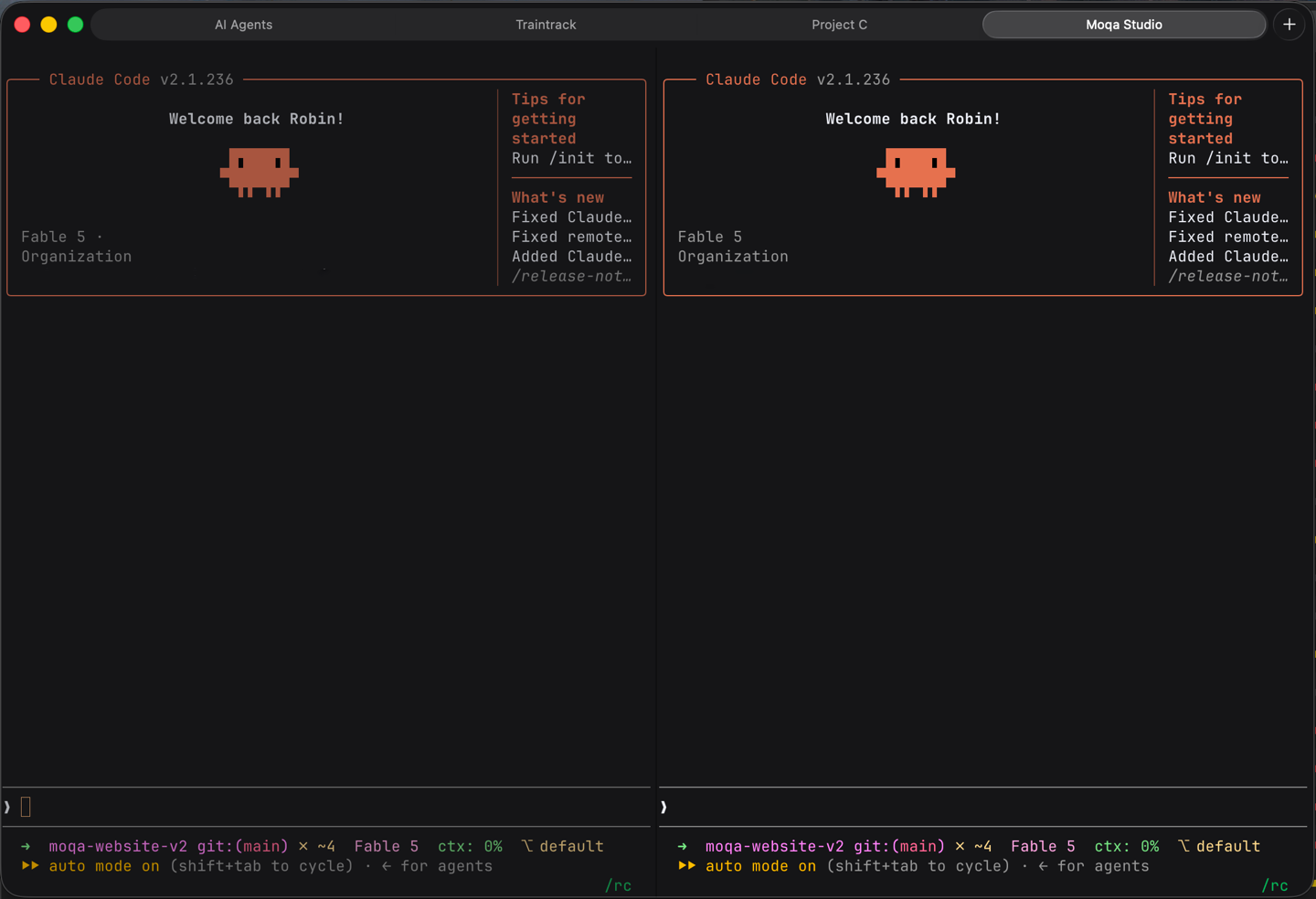
I've started using it as my main terminal (replacing iTerm2), and my workflow stayed quite simple:
- One project per tab
- Up to 4 panes per tab
I'm only using the simple keybindings to move between those panes. And voilà. Simple, effective & enjoyable on a daily basis.
Where Herdr comes in
Quick context if you've never heard of it: Herdr is a terminal multiplexer, like tmux, but built for coding agents. It runs inside your existing terminal (Ghostty, Kitty, iTerm2, even inside tmux), ships as a single Rust binary, and gives you workspaces, tabs and tiled panes.
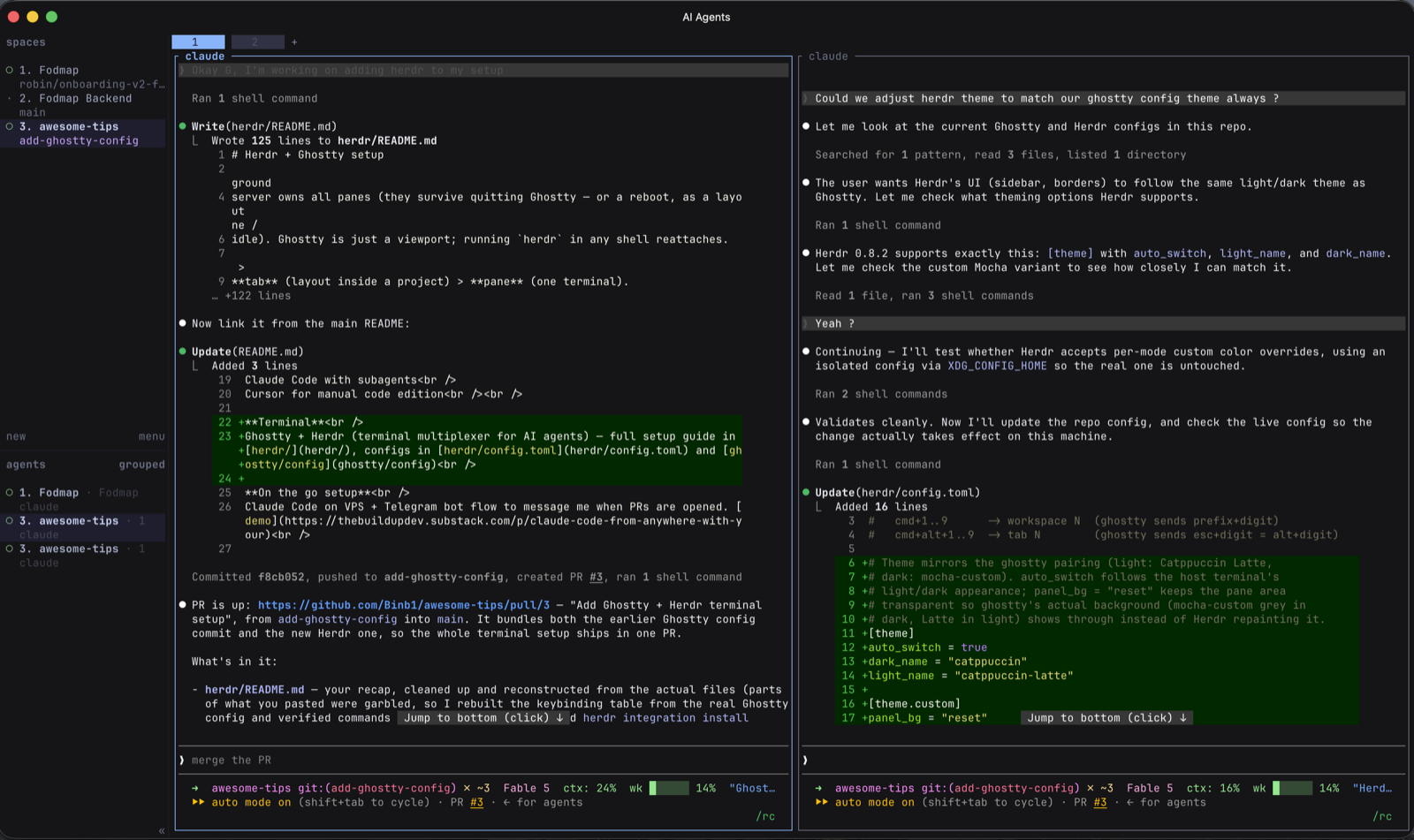
The twist: it detects the agent running in each pane (Claude Code, Codex, OpenCode, and a growing list) and shows its state in a sidebar: working, idle, done, or blocked waiting on you. Sessions persist in a background server, so you can detach, reattach, or even SSH in from another machine and your agents are still running. It also exposes a local socket API and CLI, which means your agents can drive Herdr themselves. Keep that last bit in mind, it matters later.
I started experimenting with Herdr about two weeks ago and man, I fell in love with it. I've completely reworked my usual agentic coding workflow and it's never been so enjoyable to manage several agents at once!
Why use Herdr in the first place, you might ask?
In my case, it answered 4 main needs (+ one extra that came later in):
- Herdr improves my parallel agent coding flow
- It survives Ghostty crashes (happens sometimes for me when I switch between light & dark theme)
- It's controllable and customisable using AI agents
- There is a plugin system (and it's super easy to create yours)
(and a bonus point that landed more recently: it handles remote hosts too!)
What "parallel agent flow" actually looks like
Here's a typical session for me now:
- One Herdr workspace per project, same rule as my Ghostty tabs before. Inside a workspace, one tab per task, and inside each tab: an agent pane, plus a pane for tests or a dev server.
- 5 to 6 workspaces running at once while I juggle through them
That said, I spent a couple of hours configuring Herdr before starting to properly use it, and the following section explains why.
Setting up Herdr
In order to get started with Herdr, I asked an agent (using Claude Code in my case) to rebind a few keystrokes so that I could use it easily.
I first needed to be able to use both Ghostty and Herdr shortcuts together without having to use the ctrl+b mode of Herdr, which I don't like that much.
After this, I set up my Herdr theme to match my Ghostty theme dynamically, and from there I started to work with Herdr.
Concretely, the Ghostty side looks like this:
# Herdr: forward ghostty-style shortcuts as Herdr prefix sequences
# (\x02 = Ctrl+B, Herdr's prefix key). These replace ghostty's native
# splits/tabs so Herdr owns the layout.
keybind = cmd+d=text:\x02v
keybind = cmd+shift+d=text:\x02-
keybind = cmd+t=text:\x02N
keybind = cmd+alt+t=text:\x02c
keybind = cmd+alt+left=text:\x02h
keybind = cmd+alt+right=text:\x02l
keybind = cmd+alt+up=text:\x02k
keybind = cmd+alt+down=text:\x02j

# Native ghostty escape hatches: same key plus shift
# (or ctrl where shift was already taken)
keybind = cmd+shift+t=new_tab
keybind = cmd+ctrl+d=new_split:right
keybind = cmd+ctrl+shift+d=new_split:down
keybind = cmd+shift+alt+left=goto_split:left
keybind = cmd+shift+alt+right=goto_split:right
keybind = cmd+shift+alt+up=goto_split:up
keybind = cmd+shift+alt+down=goto_split:down

# Jumping: cmd+N = Herdr workspace N, cmd+alt+N = Herdr tab N
# (esc+digit = alt+digit chord), alt+shift+N = ghostty tab N
# (cmd+shift+3/4/5 are macOS screenshot shortcuts, hence alt+shift)
keybind = cmd+digit_1=text:\x021
keybind = cmd+alt+digit_1=text:\x1b1
keybind = alt+shift+digit_1=goto_tab:1
# ...same three bindings repeat for digits 2–9
And on the Herdr side, almost nothing changes. The digits just get pointed at the right unit:
[keys]
# Workspaces are the per-project unit; give them the plain digits
switch_workspace = "prefix+1..9"
# Tabs move to direct alt+digit chords (esc+digit encoding)
switch_tab = "alt+1..9"
The trick: Herdr still thinks I'm a regular ctrl+b user, Ghostty just types the prefix for me. cmd+d sends ctrl+b v (split), cmd+t sends ctrl+b N (new workspace), cmd+1 sends ctrl+b 1 (workspace 1). No mode switching, and my muscle memory from months of Ghostty stays the same.
The digit keys end up as a three-layer system, and it's the part I use most:
cmd+N→ Herdr workspace N (one per project)cmd+alt+N→ Herdr tab N (one per task)alt+shift+N→ native Ghostty tab N
The last customisation step was setting up my Herdr theme to match my Ghostty theme dynamically, so switching light/dark in Ghostty switches Herdr too.
After a few days of usage, I found myself wanting three things:
- A menu bar integration to monitor my agents without having to be in my terminal
- A remote connection to my Mac from my phone / iPad to use Herdr
- A Raycast/macOS-like command bar to do basic actions like renaming tabs and workspaces
So I started digging to add those three things!
Spoiler: I solved #1 and #3. #2 is still a work in progress, more on that at the end.
Using SwiftBar to add custom menu bar activities
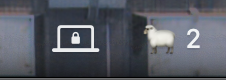
SwiftBar allows you to create custom macOS menu bar items, without having to compile anything. Install it once using Homebrew and get started. In my case, I asked my coding agent to add two things:
- A way to monitor all my Herdr agents
- A way to turn SSH access to my Mac on/off, and monitor who is connected and from where
The result is two dynamic menu bar items, indicating my agents' status & SSH connection state.
I've committed the results in my public tips & tricks repo, which I use on all my machines, if you want to have a closer look: github.com/Binb1/awesome-tips
Building a custom Herdr plugin
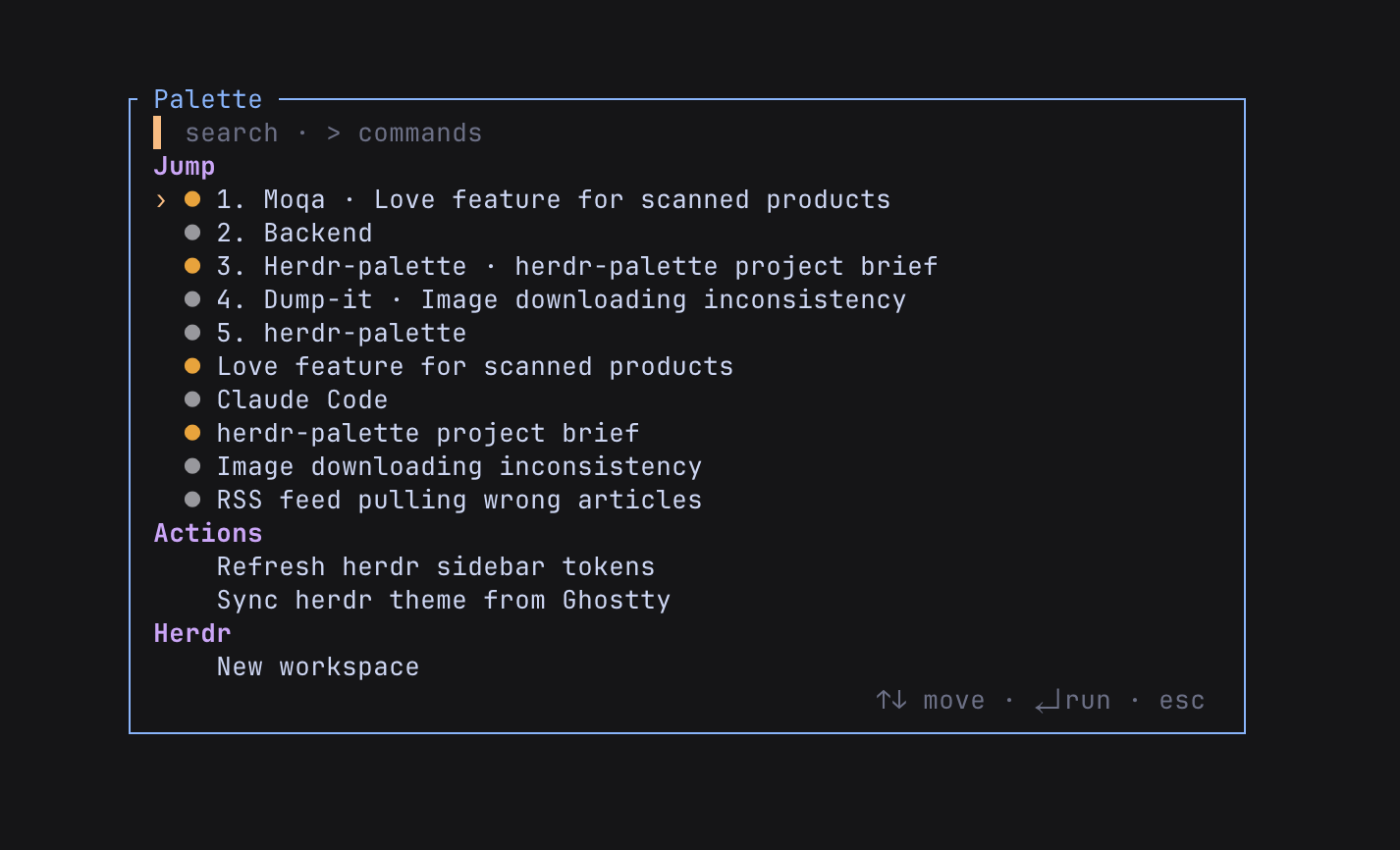
First things first, you need to know that I'm a command palette power user. I think command palettes are great UX-wise in most tools, and I felt like Herdr could definitely use one. So I decided to create my own small plugin!
What it does: hit a shortcut, get a searchable list of actions: rename the current tab, rename the workspace, jump to a workspace, split, close. The things I was previously doing with three different keybindings I could never remember.
You can install this plugin by running:
herdr plugin install Binb1/herdr-palette
The docs for creating plugins are pretty straightforward, and publishing them is too. There are already a lot of cool plugins out there btw!
Wrap-up
This new dev workflow was both fun and fast to set up.
Just to be clear, is using Herdr a must? Nope. Is it fun to use, and does it bring a productivity boost? Absolutely!
If you've got a few spare hours to tinker with this, I can only recommend it!
I'm planning to explore the best options to leverage this setup remotely (from my phone mainly) in the coming weeks, still haven't found the perfect setup for now.
If you're interested in using my custom setup, I have a public repo where I store the useful things from my different projects right here: github.com/Binb1/awesome-tips
Hoping that this can help you out, See you in the next one!
Robin